

OneDrive Sign-In Instructions

May 08, 2026
1650

1. In the system tray, click the OneDrive icon 
2. Enter Accenture email and press Sign in
3. Click Next
4. Click Start Backups
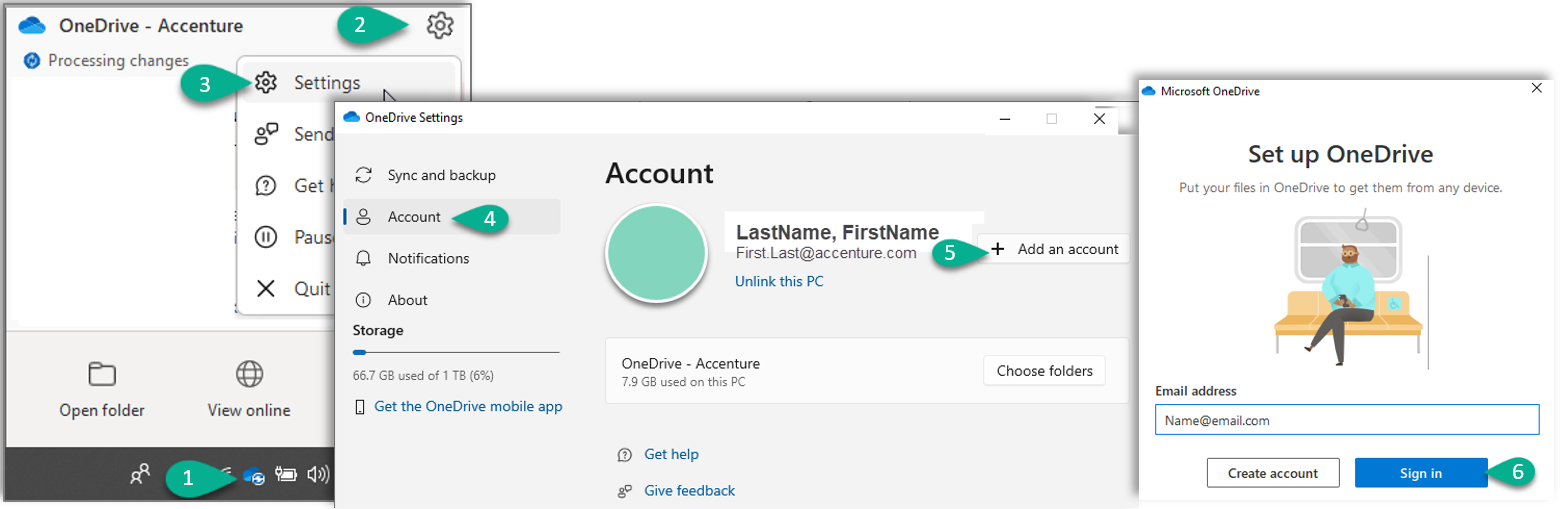
For additional accounts:
1. Click the OneDrive icon
2. Select Settings Icon 
3. Select Settings
4. Go to Account
5. Select Add an Account
6. Enter additional email and press Sign in
Files can be moved and organized using File Explorer.