

How to check if OneDrive is synced

May 08, 2026
2276

To check if your OneDrive is synced:
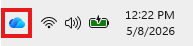
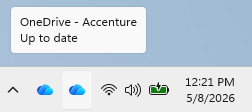
1. Hover your mouse over the blue cloud icon in your taskbar:
If it says "Up to date," then your files are synced
2. For additional confirmation, click the blue cloud icon.

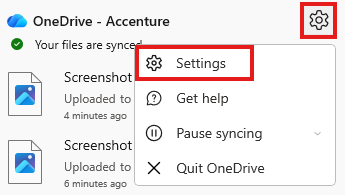
If it says "Your files are synced" next to the green checkmark, then everything stored in your OneDrive folder is synced
To ensure your local Desktop, Pictures, and Desktop folders are backed up to OneDrive:
1. Click the OneDrive icon, select the Settings icon, and click Settings:
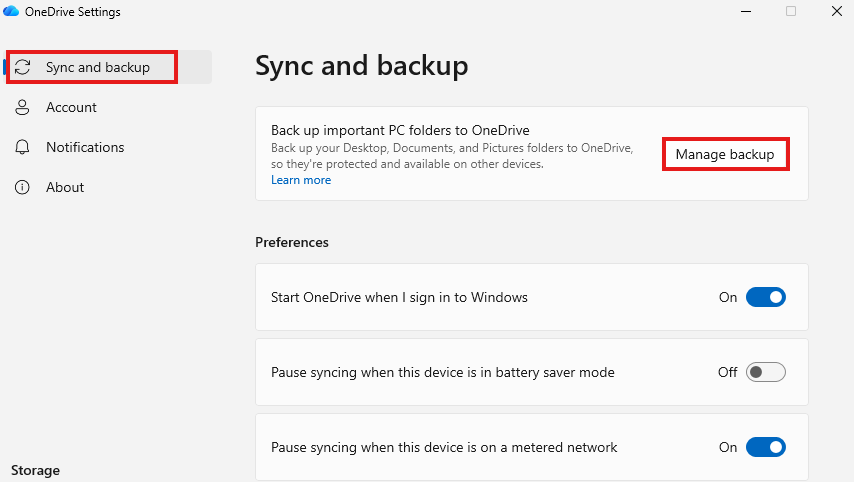
2. Select Sync and backup, followed by Manage Backup:
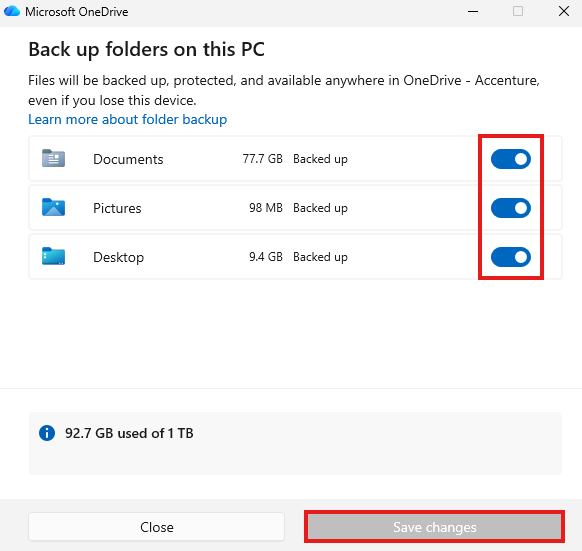
3. Ensure the three radio buttons are toggled on (as displayed below) and select Close or Save changes if you enabled backups of these folders: